./ Week_02_LINUX
./Living my tale | Support desk agent by night, Student by day | Making magic happen ✨
I don’t like to talk much; let’s cut to the chase.” Sometimes brevity is the best policy, right?
Hello there, this is the second week of my mastering Linux…
Linux Filesystem & Permissions
The Filesystem Hierarchy Standard (FHS) is commonly followed by Linux. It is made up of several branching subdirectories and one primary (or root) directory.
Root Directory ( / )
The root directory
/is the starting point for the entire Linux filesystem hierarchical tree.The root directory is owned by the root user (admin).
Permissions :
Permissions in Linux are as follows : (Owner-Group-Others)
| PERMISSION | NUMBER | LETTER |
| read | 4 | r |
| write | 2 | w |
| execute | 1 | x |
Elevating Privileges (sudo)
The Linux shell has the
sudocommand that can temporarily elevate privileges to a user who is a member of the administrator group.
Linux Paths
. - the current working directory
.. - the parent directory
~ - the user's home directory
cd - changing the current directory to user's home directory
cd ~ - changing the current directory to user's home directory
cd - - changing the current directory to the last directory
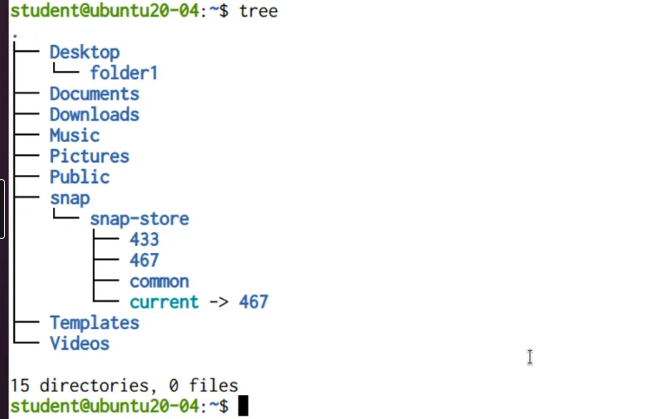
Installing tree
shows directories recursively in tree form
sudo apt install tree
tree directory/ Eg:
tree -d > prints only directories
tree -f > prints absolute paths
ls Command in detail :
ls> listing the current directoryls -l> long listingls -a> listing all files and directories including hidden onesls -ld> displaying information about the directory, not about its contentsls -h> displaying the size in human readable formatls -Sh> displaying sorting by sizedu -sh> display the size of a directory and all its contentsls -lX> displaying sorting by extensionls --hide> hiding some filesls --hide=*.log /var/log
ls -lR> displaying a directory recursively
File Timestamps
ls -lu> The access timestamp or atime is the last time the file was read (ls -lu)ls -l> The modified timestamp or mtime is the last time the contents of the file were modified (ls -l, ls -lt)ls -lc> The changed timestamp ctime is the last time when some metadata related to the file was changed (ls -lc)
Viewing files (cat, less, more, head, tail, watch):
viewing a file using cat
cat filename> displaying the contents of a filecat -n filename> displaying the line numberscat filename1 filename2 > filename3> concatenating 2 files in a new file
viewing a file using less
less filename> displays the content page by pageh > help
q > quit
enter > next line
space > next page
/string > search
?string > search backwards
n / N > next/previous appearance
g / G > first page / last page
tail filename> showing the last 10 lines of a filetail -n 15 filename> showing the last 15 lines of a filetail -n +5 filename> showing the last lines of a file starting with line no. 5tail -f filename> showing the last 10 lines of the file in real-timehead filename> showing the first 10 lines of a filehead -n 15 filename> showing the first 15 lines of a filewatch -n 3 ls -l> running repeatedly a command with refresh of 3 seconds
Working with files and directory (touch, mkdir, cp, mv, rm, shred):
mkdir dir1> creating a new directorymkdir -p mydir1/mydir2/mydir3> creating a directory and its parents as wellcp file1 dir1/file2> copying file1 to dir1 as another name (file2)cp -i file1 file2> copying a file prompting the user if it overwrites the destinationcp -p file1 file2> preserving the file permissions, group and ownership when copyingcp -r dir1 dir2/> recursively copying dir1 to dir2 in the current directorymv file1 file2> renaming file1 to file2mv file1 dir1/> moving file1 to dir1mv -i file1 dir1/> moving a file prompting the user if it overwrites the destination filemv -n file1 dir1/> preventing a existing file from being overwrittenmv -u file1 dir1/> moving only if the source file is newer than the destination file or when the destination file is missingmv file1 dir1/file2> moving file1 to dir1 as file2mv file1 file2 dir1/ dir2/ destination_directory/> moving more source files and directories to a destination directoryrm file1> removing a filerm -r dir1/> removing a directoryrm -rf dir1/> removing a directory without promptingrm -ri fil1 dir1/> removing a file and a directory prompting the user for confirmationshred -vu -n 100 file1> secure removal of a file (verbose with 100 rounds of overwriting)
Piping and Command Redirection:
Using the pipe symbol (|) we can connect two or more commands at a time.
command1 | command2 | command3 ….
Finding Files (find, locate)
sudo updatedb> updating the locate dblocate -S> displaying statisticslocate filename> filename is expanded to filenamelocate -i filename> the filename is case insensitivelocate -b '\\filename'> finding by exact namelocate -b filename> finding using the basenamelocate -r 'regex'> finding using regular expressionslocate -e filename> checking that the file existswhich command> showing command pathwhich -a command
FIND
find PATH OPTIONS
Example: find ~ -type f -size +1M # => finding all files in ~ bigger than 1 MB
Options:
-type f, d, l, s, p
-name filename
-iname filename # => case-insensitive
-size n, +n, -n
-perm permissions
-links n, +n, -n
-atime n, -mtime n, ctime n
-user owner
-group group_owner
Will learn the other commands in the following week (there are lots to learn🧐).
./See you next week…

